Every measure of inconsistency is for one participant and one cluster of judgments. Inconsistency cannot be summed across multiple participants or clusters.
The inconsistency ratio is useful for finding instances where the participant may not have been focused or patient enough to make consistent judgments. Or perhaps the participant clicked on one side (right or left) when they intended to click on the other side.
Some level of inconsistency is perfectly acceptable. The AHP theory says you should look at inconsistencies over 10% (0.1) but, in practice, you can accept more because inconsistency is a natural human attribute.
An inconsistency measure of 100% (1) or more indicates random judgments.
To deal with high inconsistencies, you can:
1) ask the participant to review their judgments and make revisions as necessary;
2) remove the participant from the model, or take away their roles for the inconsistent cluster;
3) create a participant group that excludes participants with high inconsistency and do your analysis on that group.
You can also look at the consensus report, which calculates the standard deviation across participants.
Information Documents formatting can be inconsistent for a few reasons, such as when the information was copied from an external source document and pasted to the rich text editor.
We suggest clearing or resetting the formatting using the icon below:

After clearing the formatting, you can then reformat your information document on our Rich Text Editor.
Images can be added to the information documents. If the image does not show up, you have what's called a broken image.
A broken image looks like this:
- Chrome and Microsoft Edge:

- Firefox:

- Internet Explorer:


Image can be added to information documents by:
- Uploading an image from your local machine
- Adding an image from an absolute image path (public URL)
- Copying-Pasting an image
Broken image may occur when:
- The Image no longer exists given the absolute image path -- images from the internet (public URL) may be broken when the image was deleted or moved.
- Fix: Update the Source URL
- Open the editor
- Right-click the broken image icon and then select "Image"
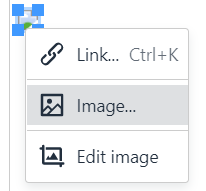
- On the General tab, update the Source URL
- Fix: Update the Source URL
- Copying an image from one information document and then pasting it to another information document. Copying an image from one information document to another will cause an incorrect image relative path. The image may temporarily show up but once the site is rebuilt or you upload the model to another site, you will see the broken image icon.
- Possible Fixes:
- Upload the image file;
- Copy the image from the original source, not from an information document, and then paste it to the editor;
- If you want to copy an image from one information document to another, you can also download the information document as a .MHT file and then upload it. This is also helpful if you want to download the entire information document, not just the image.
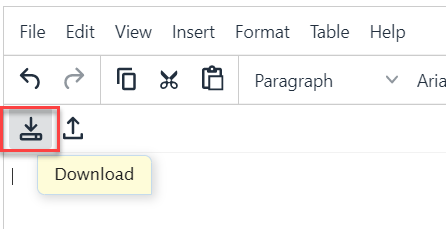
- Possible Fixes:
Your judgments are automatically recorded when you move to another step, using the "Next," "Previous," or "Next Unassessed" button.
You can also click the step number you are currently at to save your judgments and to stay on that page.
- If you are a Workgroup Manager/Owner, you have permission to create new models and manage all existing models and participants in your workgroup.
- If you cannot see these options, your workgroup permission might be assigned incorrectly; please contact us at: support@expertchoice.com or thru our live chat.
- If you are a Project Organizer, you can create new models and manage only the models you created or you have a Project Manager's permission.
- If you think your permission is not right, please contact your Workgroup Manager.
Please note that your workgroup license also determines if you can create more models.
Comparion computes the eigenvector of the judgments (not the priorities) across the selected participants to calculate combined priorities. There is no native spreadsheet function to do this -- this is what Comparion does.
For the combined priorities, first the geometric average is computed by taking the nth root of the product of the n judgments of the n participant's judgment for each pair. Then Comparion computes the eigenvector of these geometric averages. These derived priorities are shown to more accurately reflect the overall priorities.
Here are common troubleshooting techniques that often help.
- Try a hard refresh.
Browsers store cached versions of web pages to speed up your experience. However, sometimes this causes you to view an older version of a site or application. If the site looks weird or is glitching, doing a hard refresh often can fix the problem.- Windows: Control + F5
- Apple/Mac: Command + R or Apple + R
- Linux: F5
- Log out and log back in.
The software equivalent of turning it off and on, this is probably the most common troubleshooting technique there is. It's common because it works a lot of the time. Not successful? Try totally logging out and totally closing your browser. If you happen to leave your browser open for long periods of time, it can become very slow and cause performance issues with many sites and applications. - Clear your cache and cookies.
Your browser stores a lot of information about your web history in cookies and cache. Over time, this can slow down your browser and, with certain sites or applications, can cause conflicts with newer versions. Sometimes it might be helpful to clear your cache and cookies to improve browser and application performance.- Chrome: https://support.google.com/accounts/answer/32050
- Firefox Cache: https://support.mozilla.org/en-US/kb/how-clear-firefox-cache
- Firefox Cookies: https://support.mozilla.org/en-US/kb/delete-cookies-remove-info-websites-stored
- Internet Explorer: http://windows.microsoft.com/en-us/internet-explorer/manage-delete-browsing-history-internet-explorer
- Safari Cookies: https://support.apple.com/kb/PH19215
- Safari Cache: https://support.apple.com/kb/PH19215
- Try a different browser.
Some issues may be browser-specific or caused by an extension or plugin. Trying a different browser can help you narrow down what is causing a problem.
If you are still having trouble, please reach out to support. We're here to help.
Yes. Multiple PMs can log in and edit the same project model concurrently.
The application allows multiple Project Managers (PMs) to work on the same model simultaneously. This enables collaborative work without preventing users from making changes. However, because the system does not currently provide real-time synchronization or conflict resolution, concurrent edits may result in one user's changes overwriting another's when they modify the same data.
To reduce confusion, the application notifies users when the model has been updated by another PM and recommends refreshing the page to load the latest version.
Current Behavior
Simultaneous Editing
Multiple PMs can open and edit the same model at the same time. The system does not lock the model or restrict editing based on who is currently viewing or modifying it.
Changes are submitted whenever a user performs an action that persists data, such as:
- Saving the model
- Updating Roles or Contributions
- Renaming objectives or other model elements
- Adding, deleting, or modifying model nodes
- Editing other model properties that trigger a save
The system processes each save request independently.
Save Behavior
The application follows a Last Save Wins approach.
If multiple PMs modify the same object or property, the version submitted most recently becomes the stored value. Previous changes to that same item are replaced.
Example
- PM1 and PM2 open the same model.
- PM2 updates the name of an objective and saves.
- PM1 has not refreshed the page and is still viewing the previous version.
- PM1 edits the same objective and saves.
- PM1's update becomes the final version because it was saved last.
This behavior applies regardless of which user made the first change.
Concurrent Changes That Are Preserved
Edits made to different objects do not conflict and are merged successfully.
Examples include:
- PM1 renames Objective A while PM2 renames Objective B.
- PM1 adds a new objective while PM2 updates an existing contribution.
- PM1 modifies one branch of the model while PM2 works on another.
- Different PMs update separate screens or independent sections of the model.
Since these operations affect different records, all changes are retained.
Situations Where Changes May Be Overwritten
Conflicts occur when two or more PMs modify the same object before refreshing their local copy of the model.
Examples include:
- Renaming the same objective
- Updating the same Role or Contribution
- Editing the same node
- Changing the same model property
- Modifying the same Infodoc
In these cases, the system does not compare or merge the changes. The latest successful save replaces the previous version.
Model Synchronization
Changes made by one PM are not immediately reflected on another PM's screen.
To inform users that newer data is available, the application displays a notification such as:
"The model has been updated. Click here to refresh and load the latest changes."
Refreshing the page reloads the current version of the model and helps prevent users from continuing to edit outdated information.
Until the page is refreshed, users may unknowingly continue working with stale data, increasing the likelihood of overwriting another user's changes.
Infodoc Editing
Infodocs follow the same concurrent editing behavior as the model.
Multiple PMs can edit the same Infodoc simultaneously, and each save replaces the previous version. Because Infodoc content is edited as a single document rather than independent fields, concurrent edits have a higher risk of unintentionally overwriting another user's work.
Current Limitations
The current implementation does not include:
- Real-time synchronization of model changes
- Automatic conflict detection
- Change merging
- Field-level edit locking
- User presence indicators
- Version comparison before saving
As a result, users are responsible for refreshing the model when notified that newer changes are available.
Potential Enhancements
Several enhancements could significantly improve the collaborative editing experience:
Presence Awareness
Display which PMs are currently viewing or editing the model, including the section or object they are working on.
Edit Indicators
Highlight objects that are actively being modified by another user to reduce accidental conflicts.
Infodoc Locking
Allow only one PM to edit an Infodoc at a time, while others have read-only access until editing is complete.
Optimistic Conflict Detection
Notify users when the object they are attempting to save has already been modified by another PM, allowing them to review the latest version before overwriting it.
Real-Time Synchronization
Implement live synchronization so changes made by one PM are automatically reflected for all other users without requiring a manual refresh. This would provide a collaborative editing experience similar to modern cloud-based applications and significantly reduce editing conflicts.
Summary
The system currently supports concurrent editing by multiple PMs through a Last Save Wins strategy. Independent updates to different objects are preserved, while simultaneous changes to the same object result in the most recent save replacing earlier changes.
Although a refresh notification helps users stay synchronized, the absence of real-time collaboration and conflict detection means there remains a risk of unintentionally overwriting another user's work. Future enhancements focused on live synchronization, edit awareness, and conflict prevention would greatly improve the collaborative editing experience.
